Key takeaways
- PrestaShop exposes order data through its built-in Webservice – you switch it on once in Advanced Parameters.
- You generate a 32-character Webservice key and grant it View (GET) on the
ordersresource. - Grant only what the Agent needs –
orders, pluscustomersandaddressesif you use them. - PrestaShop authenticates with the key as Basic Auth or
?ws_key=–Authorization: Bearerneeds extra setup.
What the connection does
PrestaShop ships with a Webservice (its REST API) that you enable in the admin. Once it is on, an AI Chat Agent built for e-commerce can read your order data through it – so it can answer “where is my order?” in the shopper’s own words, at any hour. Authentication is a single Webservice key you generate once and hand to AskSpot.
Before you start
- Access to the PrestaShop admin as an administrator.
- HTTPS enabled – recommended, so the key travels safely as Basic Auth.
Step 1 – Enable the Webservice
- Sign in to the PrestaShop admin as an administrator.
- Go to Advanced Parameters → Webservice (older wording: Parametry zaawansowane → Usługa sieciowa).
- Turn on Enable PrestaShop’s webservice.
- (Optional) Turn on CGI mode for PHP if it is available – it helps pass the
Authorizationheader. - Save your changes.
Step 2 – Create a Webservice key
- Click Add new webservice key.
- Generate, or type, your own 32-character API key.
- Add a description (e.g. AskSpot order integration).
- Set the status to Yes / Active.
Step 3 – Grant permissions
- Tick View (GET) for the
ordersresource. - (Optional) Add View (GET) for
customersandaddressesif you need customer and address data. - Do not tick more than necessary – least privilege keeps the key safe.
- Save your changes.
Step 4 – Test the key
Check it with curl or Postman. Pass the key in the query string with ws_key, and replace your-store.com with your store:
curl "https://your-store.com/api/orders/1?ws_key=YOUR_API_KEY&display=full"Or use HTTP Basic Auth – the key as the username, an empty password:
curl -u YOUR_API_KEY: "https://your-store.com/api/orders/1"In Postman, choose Basic Auth and set Username to the key and Password to blank. Add output_format=JSON to the request if you want the response as JSON. Orders in the response mean the key and its permissions are working.
Authentication: ws_key, Basic Auth and Bearer
PrestaShop authenticates with the Webservice key by default – either as ?ws_key= in the URL or as HTTP Basic Auth. It does not accept Authorization: Bearer without modification. If your integration needs Bearer:
- Turn on CGI mode in PrestaShop.
- Or modify the API code to handle the
Bearerheader. - Or put a proxy in front that converts
Bearer→ws_key.
Where possible, the simplest path is to point the external system at Basic Auth or ws_key – which is exactly what AskSpot uses.
Step 5 – Add the key to AskSpot
That is the PrestaShop side done. You add the connection yourself in the AskSpot partner panel – there is no need to send us the key:
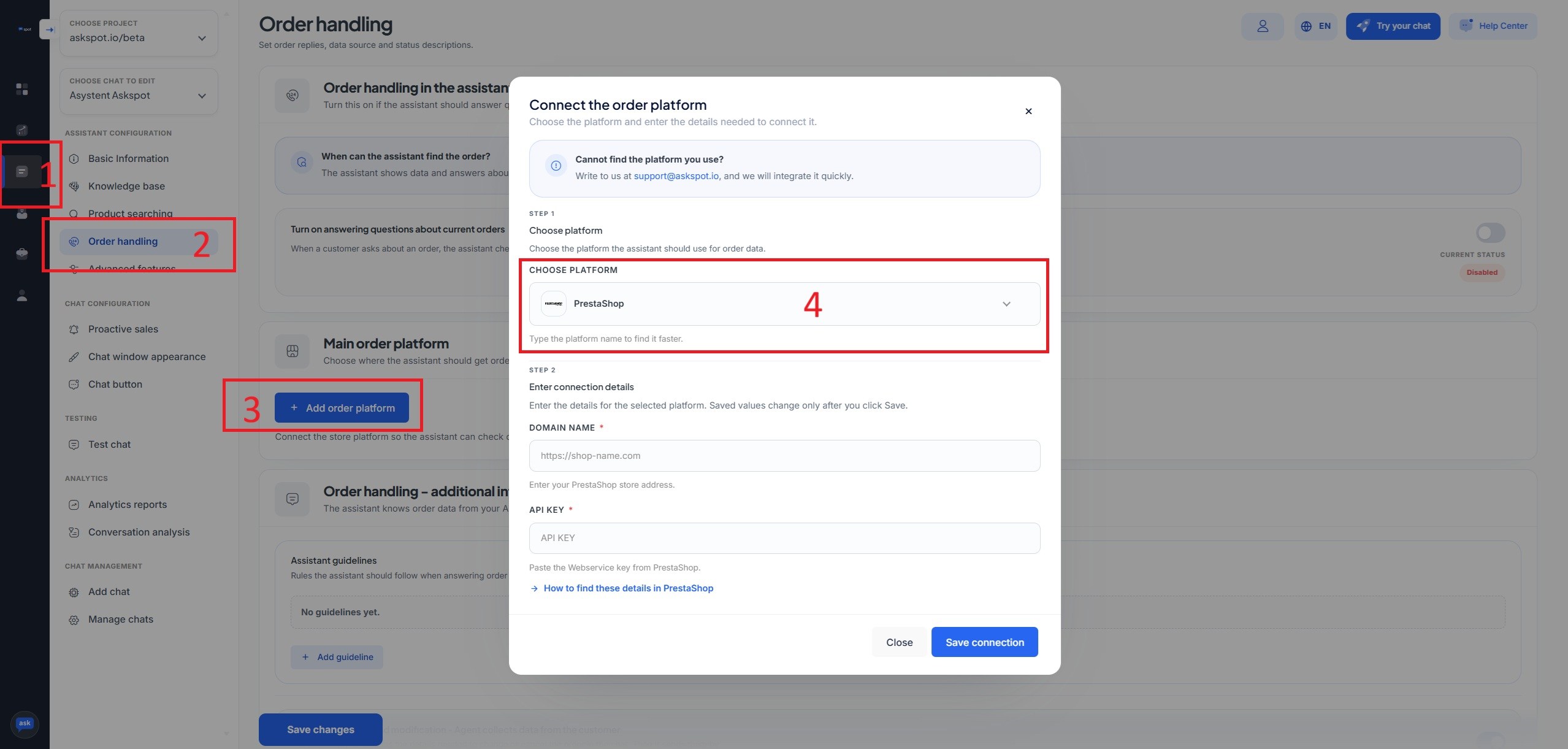
- Sign in to partners.askspot.io.
- Open the AI Chats section and go to Order handling.
- Click Add order platform and choose PrestaShop from the list.
- Enter your Domain name (with
https://, e.g.https://shop-name.com) and paste the Webservice key into the API key field, then click Save connection.
Stuck? Ask the Help center. The AskSpot panel has a Help center in the top-right corner. Tell it what you want to set up and it walks you through connecting and configuring the Agent – you don’t have to do it alone.
From then on the Agent reads orders straight away – the connection behind “where is my order?” answered without a human.
For placement modes, display options and the full picture, see the PrestaShop integration.
Next – measure conversions. Once the chat is live, connect Google Analytics to see which conversations lead to sales. See how to track the AskSpot chat in Google Analytics.
Do I need a plugin to connect PrestaShop to AskSpot?
No. PrestaShop has a built-in Webservice (REST API). You enable it and generate a key in Advanced Parameters – there is nothing extra to install.
Which permissions should the key have?
View (GET) on orders is enough to answer order questions. Add customers and addresses only if your setup needs customer and address data, and nothing more.
The API returns 401 or an empty result – why?
Check that the Webservice is enabled, the key is Active, and it has View (GET) on orders. If the Authorization header is being stripped, pass the key in the query string with ws_key instead, or enable CGI mode.
Does PrestaShop support Authorization: Bearer?
Not by default – it uses ws_key or Basic Auth. Bearer needs CGI mode, an API-code change, or a proxy that converts Bearer to ws_key. AskSpot uses Basic Auth / ws_key, so no change is needed.
Official references
For the authoritative, always-current details, see PrestaShop’s own documentation: