Key takeaways
- Allegro connects with a Client ID and Client Secret from an application in your Allegro developer account.
- You do it yourself in partners.askspot.io: paste the keys, pick the Allegro market, then Generate authorization link.
- You open that link, sign in and grant access on Allegro, then finish in the wizard’s Verification step.
- Run one responder per market if you sell on several Allegro sites, and start in test mode.
What the connection does
Allegro is where your buyers message you. Once connected, the AI Inbox Support Agent reads incoming Allegro messages and answers the routine ones – “where is my parcel?”, returns, delivery and product questions – in the buyer’s own language, around the clock, and passes the judgment calls to your team. You decide which messages it picks up and when it goes live. Switch the responder off and revoke access, and your messages and history stay exactly where they are.
Before you start
- An active Allegro seller account.
- A Client ID and Client Secret from an application in your Allegro developer account (Step 1 below).
Step 1 – Get your Allegro Client ID and Client Secret
Sign in to the Allegro developer portal (apps.developer.allegro.pl) with your seller account and open My applications. Open an existing application or create a new one, then copy its two values:
- Client ID – the public identifier of your Allegro application.
- Client Secret – the confidential key tied to your Allegro developer account. Keep it private.
If the application asks for a redirect URI, use the one shown in the AskSpot wizard. AskSpot generates the authorization link for you, so the address to allow is the one the Allegro connection form displays in its Verification step – copy it into your Allegro application if it is required.
Step 2 – Enter the keys in AskSpot
- Sign in to partners.askspot.io.
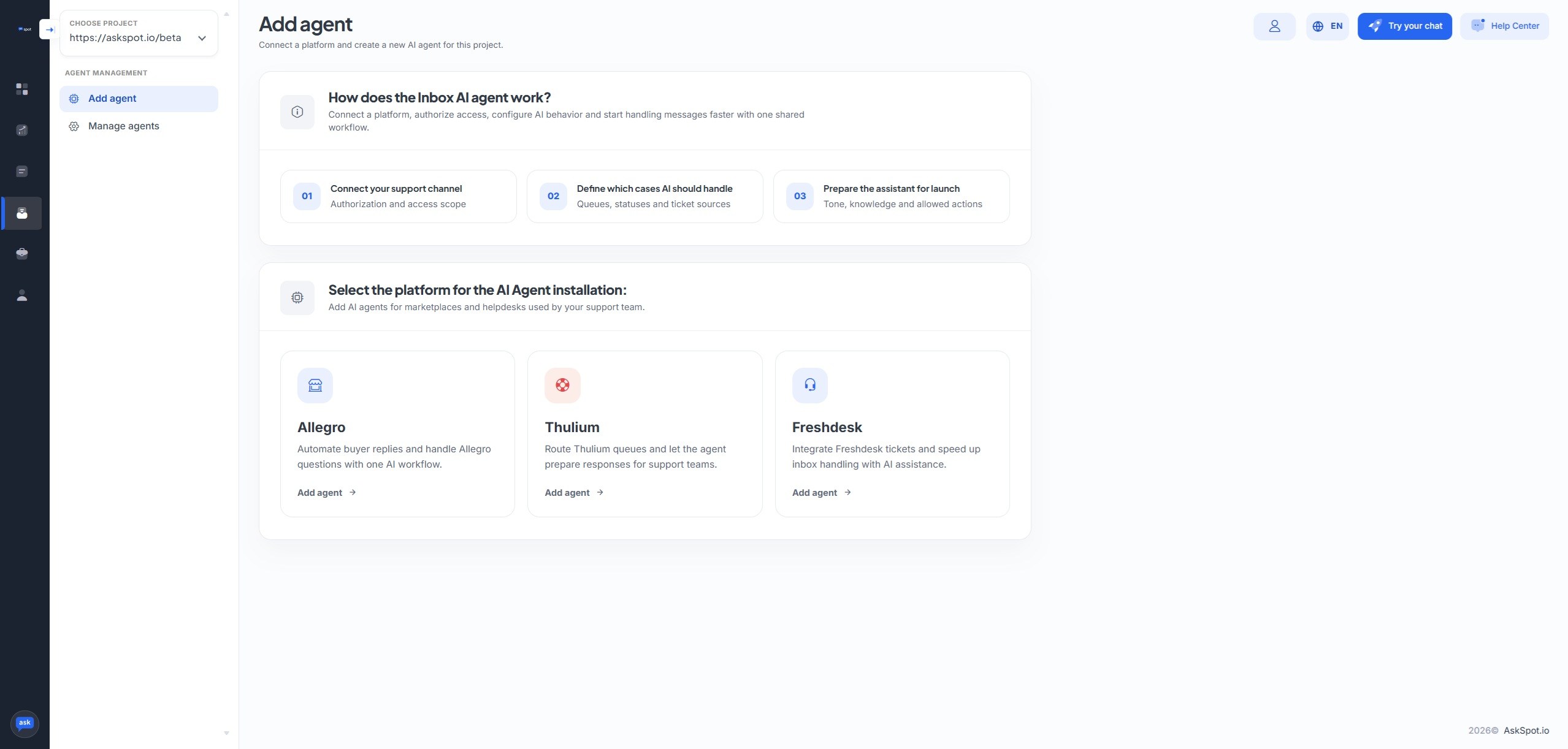
- In the menu, choose Inbox AI Agents.
- Pick Allegro as the platform to install the Agent on.
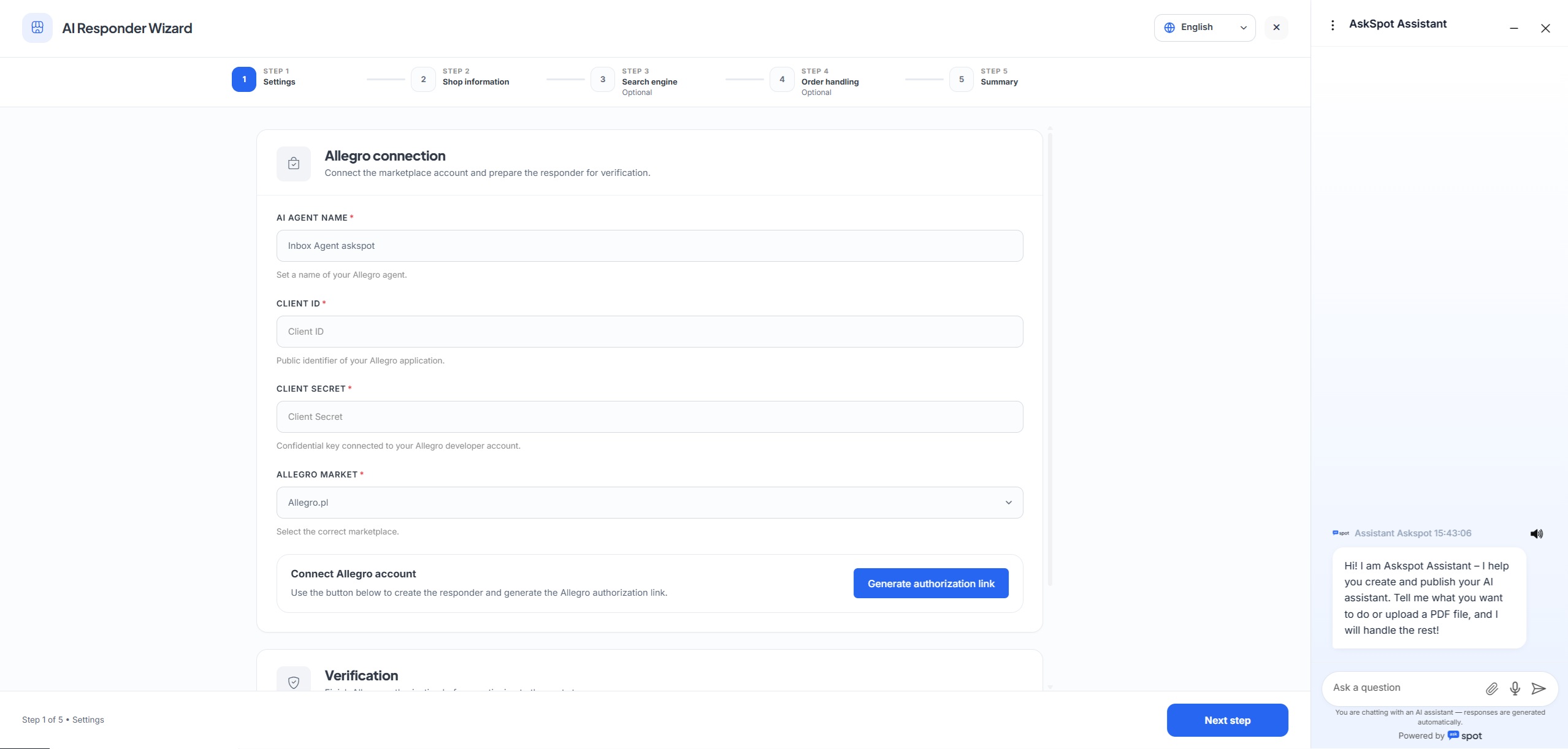
- Give the responder a name, paste your Client ID and Client Secret, and select the Allegro market (run a separate responder per site if you sell on several).
Step 3 – Generate the link and grant access on Allegro
- Click Generate authorization link. AskSpot creates the responder and prepares a link that asks Allegro for access to your account.
- Open the link – it takes you to Allegro. Sign in as the seller if you are not already.
- Review the access AskSpot is asking for and confirm it.
Step 4 – Finish in the Verification step
Back in the wizard, the Verification section completes the connection. Follow its prompt to finish the Allegro authorization – once it confirms, the responder is connected to your seller account.
Stuck? Ask the Help center. The AskSpot panel has a Help center in the top-right corner. Tell it what you want to set up and it walks you through connecting and configuring the Agent – you don’t have to do it alone.
Step 5 – Choose the queue and start in test mode
Choose which Allegro messages the responder picks up, and leave it in test mode to start. It moves through three stages, and you draw the line: test mode (answers written, never sent), draft mode (replies prepared for your team to send, edit or discard), and responder on (it replies by itself). Nothing reaches a buyer until you switch it on.
For the full rollout ladder and what the Agent picks up on the marketplace, see the Allegro integration.
Where do I get the Client ID and Client Secret?
From an application in your Allegro developer account. Sign in to the Allegro developer portal (apps.developer.allegro.pl), open My applications, open or create an application, and copy its Client ID and Client Secret.
Will the Agent start replying to buyers right away?
No. It starts in test mode, where answers are written but never sent. Draft mode is the middle step – replies are prepared and your team chooses whether to send, edit or discard each one. Only when you switch the responder on does it reply by itself.
I sell on several Allegro markets – one responder or several?
Run one responder per market, each with its own name, language and knowledge base. Repeat the steps above for each Allegro site you connect.
How do I disconnect it?
Switch the responder off and revoke the application’s access from your Allegro account. Your messages, history and workflows stay exactly where they are – they never left Allegro.